.svg)
Step-by-step guide to compress and unzip files on Windows and Mac. Learn how to manage compressed files with ease using this comprehensive tutorial.

With zip, you can group or archive numerous files and have them act as a single file. Let's say you need to send multiple documents and image files to someone, you'll need to attach each file individually and that will take a lot of time.
A better option would be to package everything into a zip file and quickly attach that zip file to the mail. Another characteristic of a zip file is that it is compressed.
This means that the files will be smaller and it will be easier to attach larger files to the email and send them. When you publish them on the web, they can be quickly downloaded.
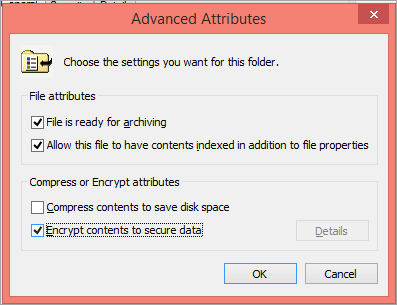
Or you can use WinRAR to encrypt the zip file.
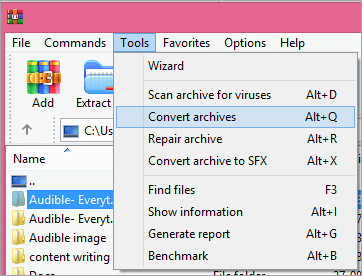

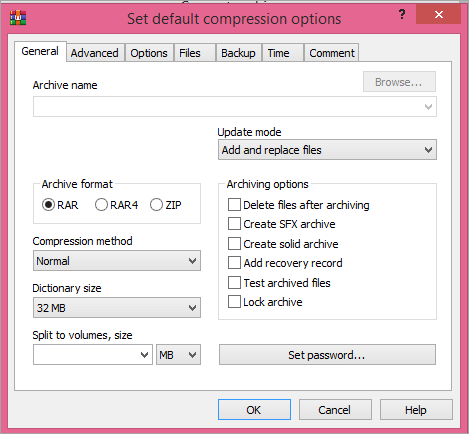

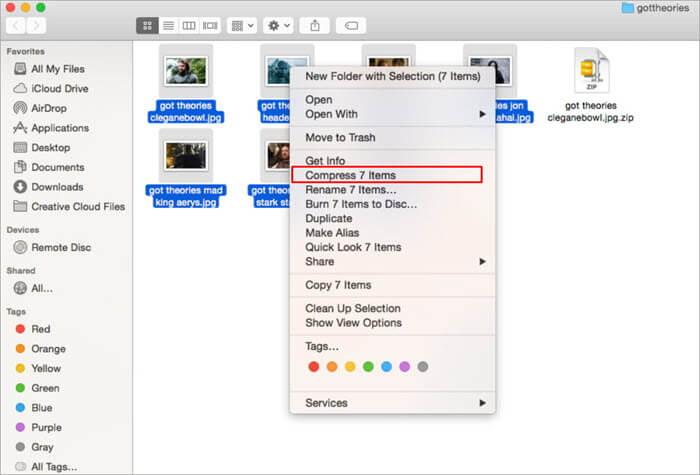
On Windows, you can add other files to the zip file you created, but not on macOS. Here you will need to create a new one.
macOS also allows you to create encrypted zip files using the Terminal.

You can also use Archive to password-protect your zip file.

Windows makes it easy to work with ZIP files, so you don't need to unpack them.

To extract a single file, you can simply drag and drop it from the zip folder.
Decompressing a file is a bit different on a Mac compared to Windows. You cannot open a decompressed file directly, but it is placed in a new folder.
Or
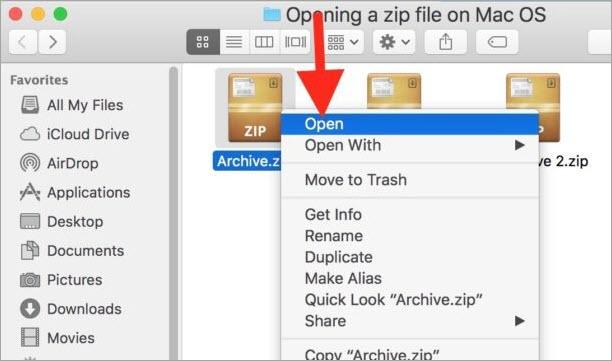
If these methods don't work, you can also use other applications like 7-zip, Peazip, and more to compress and decompress files.
Recommended reading: Learn to open RAR files on Windows and Mac
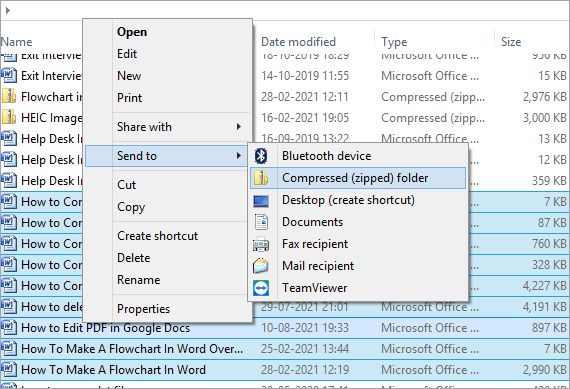
Yes. Windows 10 has a built-in file compression option that you can use to compress or decompress a file. To compress a file, select the files, right-click them, and select Send to. Then click on the compressed format to create a zip file. To unpack a file, right-click the file and select Extract All.
Yes, you can do that. On Windows 10, right-click the file you want to compress, click Send To, and click the Compressed (zipped) folder. On macOS, right-click the file and select Compress.
Yes, macOS comes with a compression program called the Archive Utility app, which makes it easy to compress a file with just a few clicks.
No You don't lose quality when you zip a file. Upon extraction, you will find that the files are, byte by byte, exact copies of the original. You don't lose the fidelity, image quality, or data associated with zipped files.
Zip files can send more data at a faster speed using compression. When files are compressed, they become lighter, which means they take up less space and can be sent quickly. Also, the amount of data that your computer uses to process this file will be greatly reduced.
There are plenty of other third-party applications available for compressing and decompressing files, but Windows 10 and macOS have all the necessary functions for this purpose.
These programs are easy to use and effective. But if you work primarily with zip files, you can also rely on a third-party application that is more efficient and better meets your needs. The ease with which you can work on zip files on Windows and Mac allows anyone to easily process multiple and large files.